
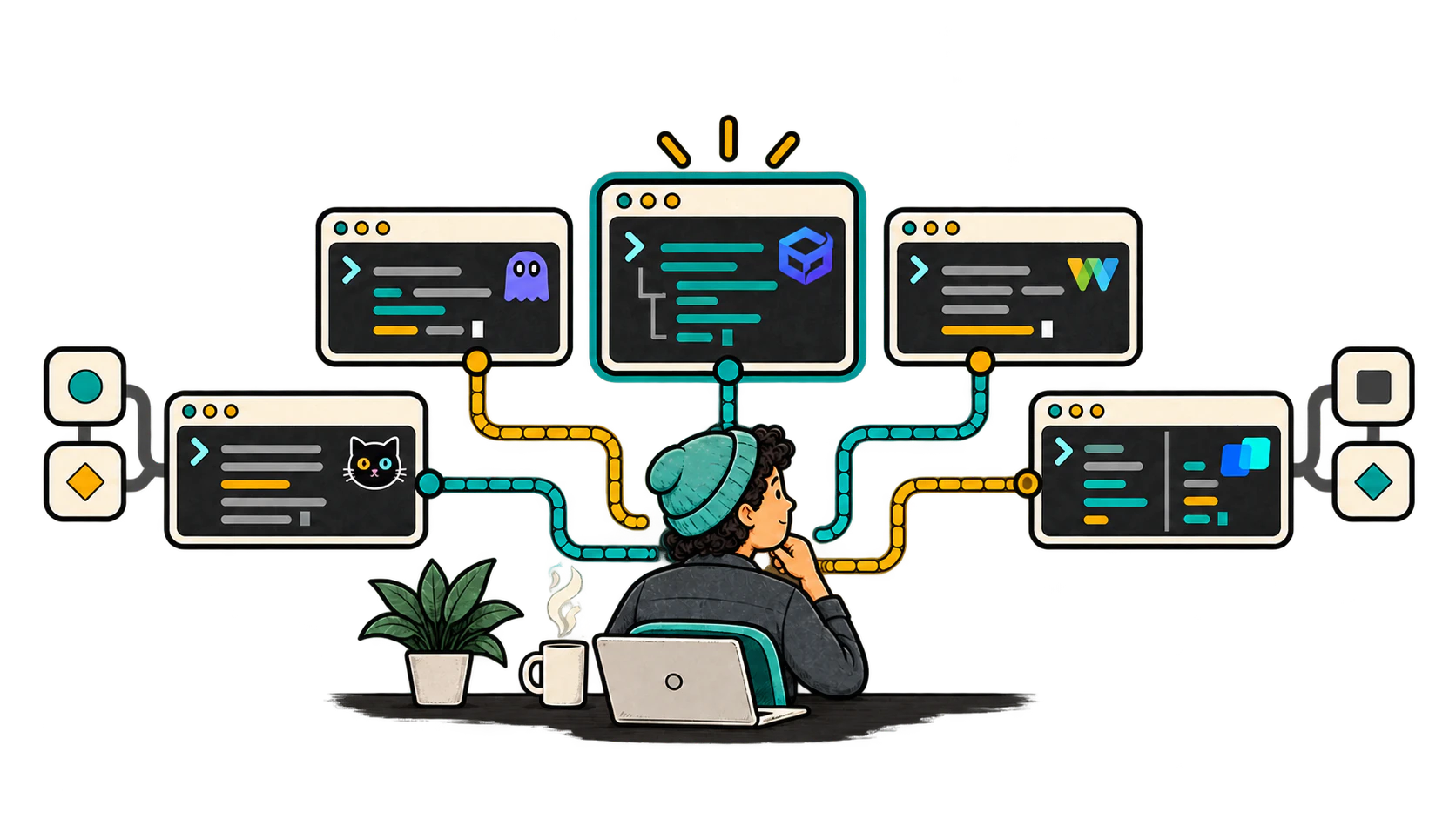
A terminal is something you may keep open for hours, so the right choice is less about a giant feature list and more about how comfortably it fits your daily workflow.
This comparison looks at Ghostty, WezTerm, kitty, Warp, and Automexia. They all handle the core terminal job, but they make different choices around native desktop behavior, configuration, automation, connected features, and session organization.
Use the quick comparison to build a shortlist. Then jump directly to the individual terminal sections that match your platform and the way you work.
Overview
The comparison is deliberately practical. I look at four things: whether the terminal supports the operating systems you use, how much configuration it asks you to maintain, whether its workflow stays close to a traditional shell, and what additional account or network boundaries it introduces.
Disclosure: I am the creator of Automexia. Its section includes firsthand product context. The other products are assessed from their current official documentation, and Automexia's Public Alpha status is treated as a real limitation throughout this article.
I checked the public release state on September 19, 2026. Planned features do not count as shipped. I also avoid a synthetic “fastest terminal” ranking because rendering results depend on hardware, fonts, scrollback, and workload.
Quick comparison
Start here. The purpose of this table is not to pick a universal winner; it is to remove options that clearly do not fit your platform or workflow before you spend time on the detailed reviews.
| Terminal | Best for | Main limitation | Platforms |
|---|---|---|---|
| Ghostty | Native-feeling desktop behavior with focused defaults | No Windows app; Linux packaging depends on the distribution | macOS, Linux |
| WezTerm | A programmable setup shared across operating systems | Lua configuration can become a project of its own | Windows, macOS, Linux, BSD |
| kitty | Terminal-native automation, protocols, and extensions | No native Windows app and a real learning curve | Linux, macOS, BSD |
| Warp | A terminal workspace with an editor, command blocks, and agents | Connected features widen the network and data boundary | Windows, macOS, Linux |
| Automexia | Organized local terminal sessions with the shell remaining in control | Public Alpha; stable Windows and macOS releases are not published | Linux x64, Linux Arm64 |
The large stacked product-card list has been removed from the beginning. Each visual now appears only inside the relevant product section, where it supports the review instead of competing with the rest of the page.
1. Ghostty
Fast, native-feeling, and focused.
Ghostty is designed to feel like part of the desktop around it rather than a separate cross-platform interface. It combines a shared Zig core with AppKit and SwiftUI on macOS and GTK4 on Linux, so tabs, splits, shortcuts, and window behavior follow the host operating system.
Highlights
- Focused defaults with native tabs and splits.
- Hyperlinks, themes, and graphics support are available without a large configuration first.
- Its project description keeps performance claims bounded rather than treating one benchmark as universal.
Things to consider
- There is no Windows app.
- On Linux, package availability and update speed depend on the distribution.
- The macOS and Linux interfaces are intentionally different.
2. WezTerm
Programmable, flexible, and genuinely cross-platform.
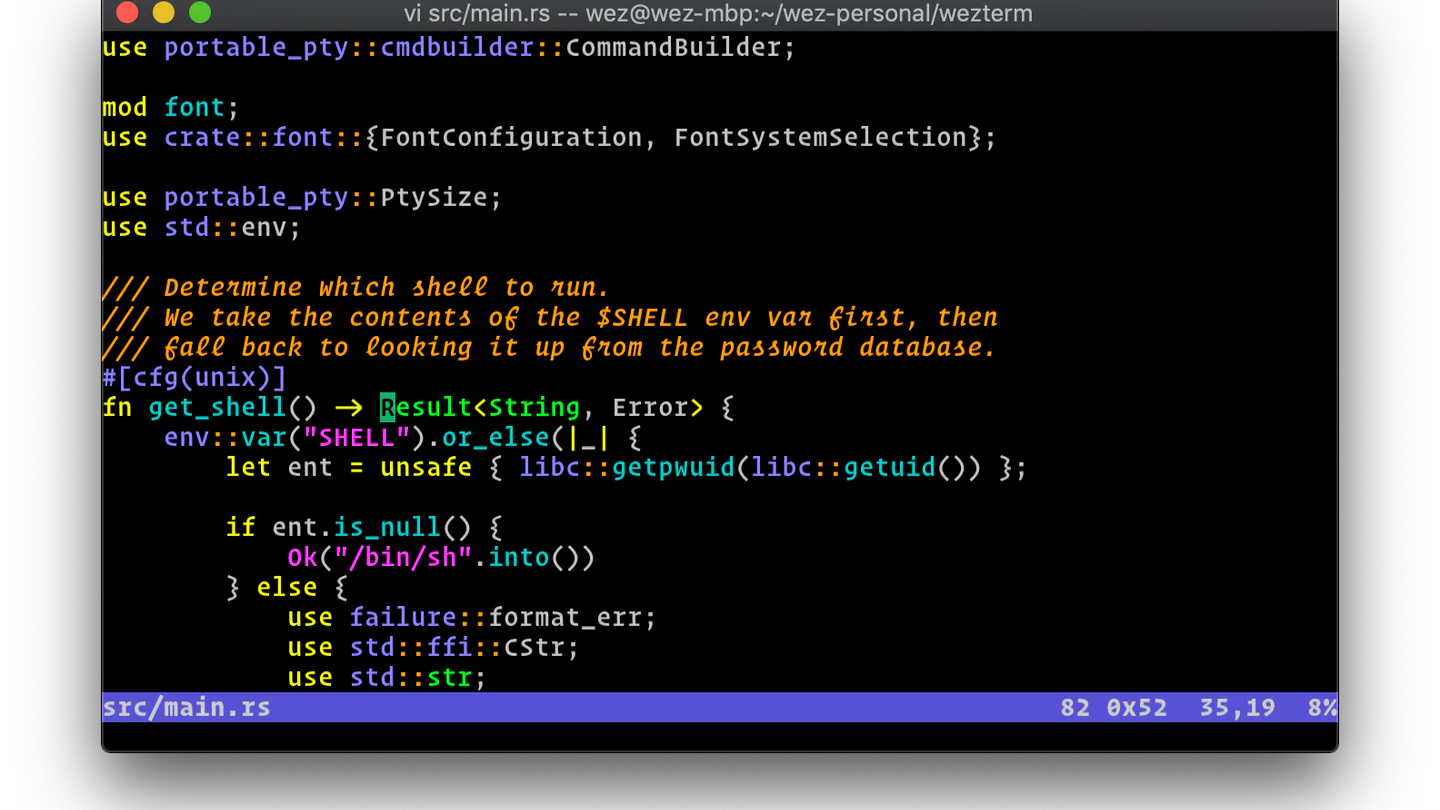
WezTerm is the clearest fit here if you want one terminal setup to travel across several operating systems. Its documented platform range includes Windows, macOS, Linux, FreeBSD, and NetBSD, and it combines terminal emulation with local and remote multiplexing.
Highlights
- Lua configuration can describe key bindings, appearance, events, launch menus, and platform conditions.
- SSH domains, images, ligatures, search, and copy modes live in the same programmable environment.
- Windows users get ConPTY support and official packages.
Things to consider
- A powerful Lua config can grow into a small software project.
- Copied snippets and event handlers still need long-term ownership.
- Remote multiplexing deserves a real reconnection and recovery test before incident use.
3. kitty
Terminal-native power without turning the terminal into a separate workspace.
kitty stays close to traditional terminal workflows while adding GPU rendering, tabs, layouts, sessions, remote control, and small tools called kittens.
Highlights
- Its graphics and keyboard protocols have influenced other terminal tools.
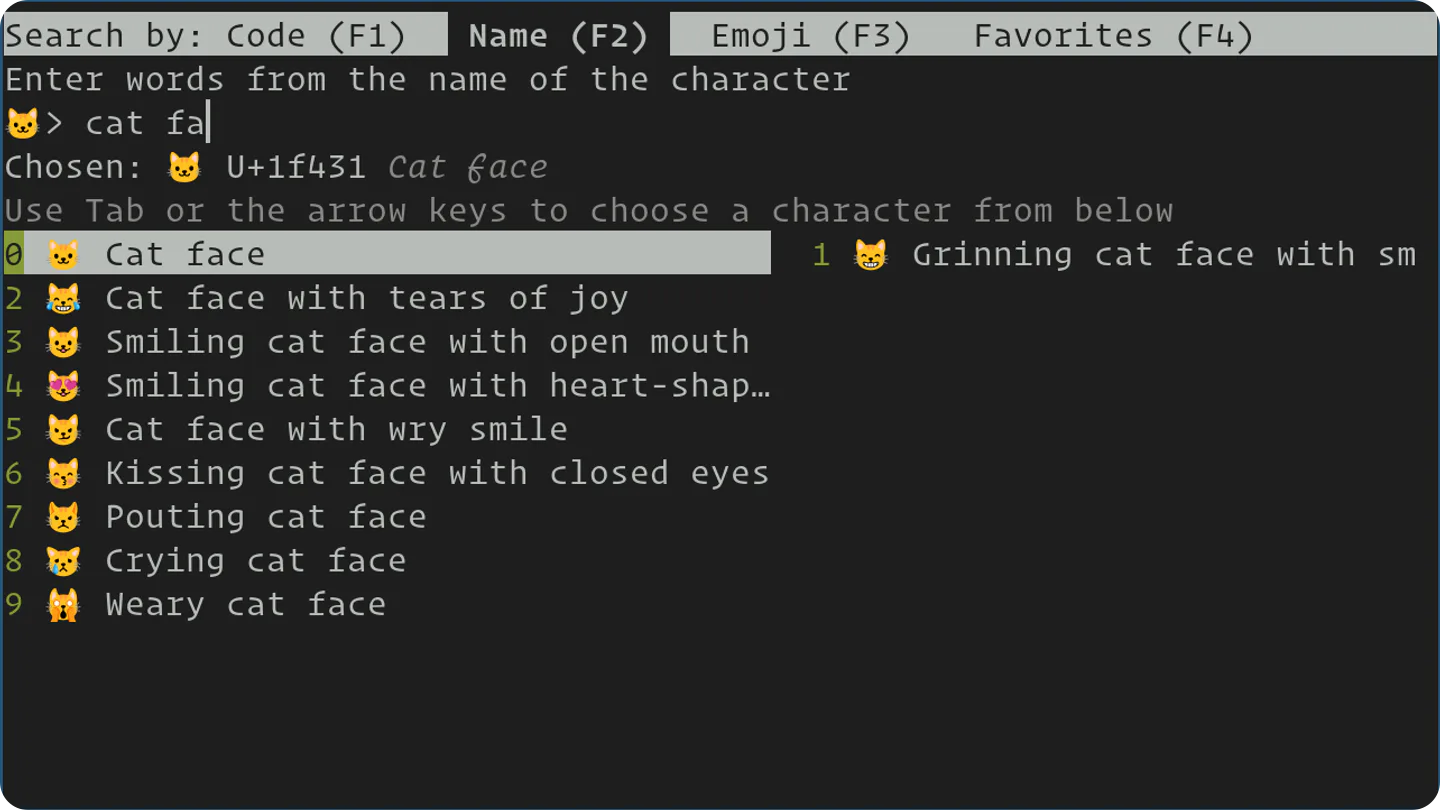
- Kittens add focused capabilities such as diffing, Unicode input, themes, and remote-file handling.
- Much of the experience remains accessible through configuration files and scripts.
Things to consider
- There is no native Windows app.
- Its vocabulary and deeper features take time to learn.
- Remote control should be configured deliberately because it expands what another process can ask the terminal to do.
4. Warp
A broader development workspace built around the terminal.
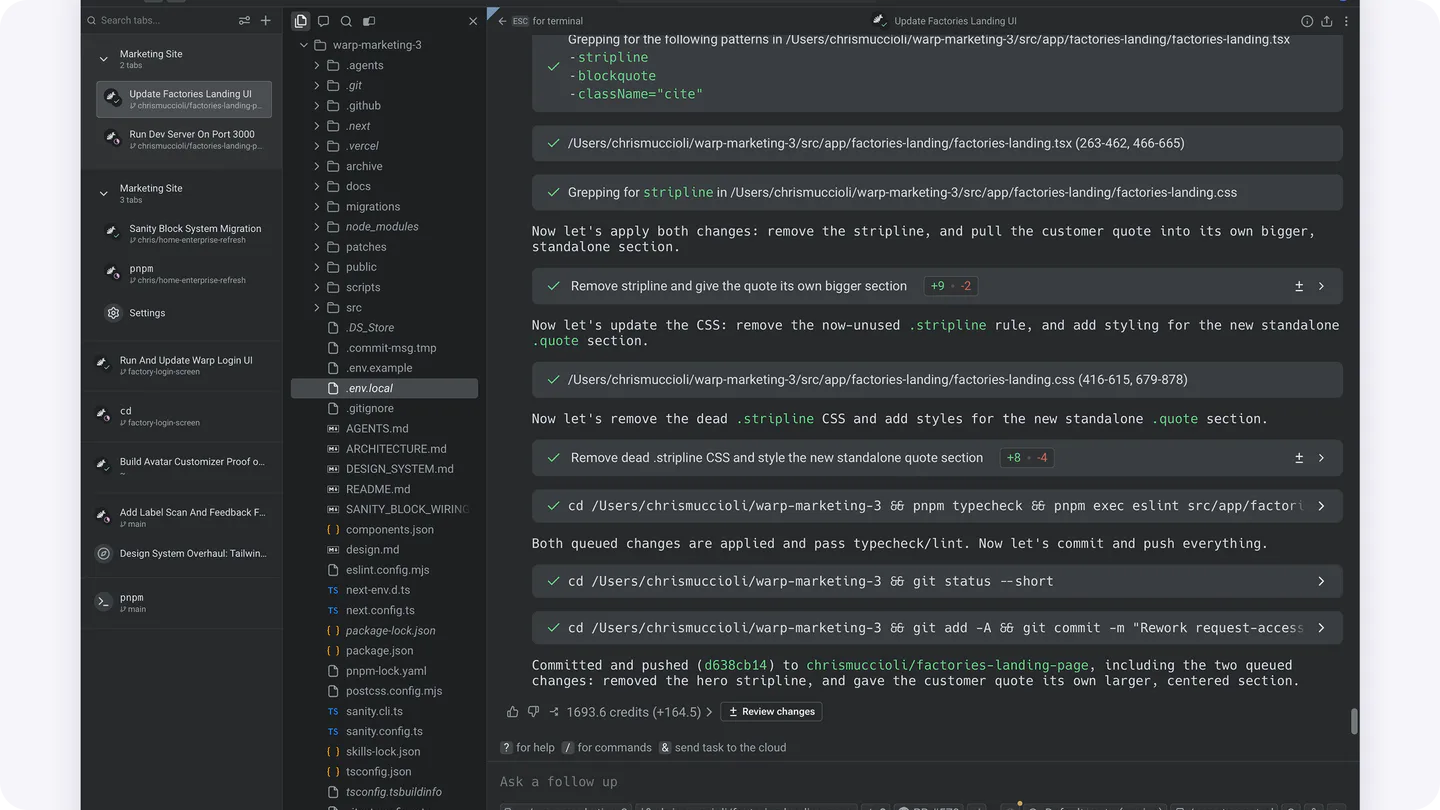
Warp goes further than the other terminals in this comparison by combining the terminal with an editor, file tree, structured command blocks, and agent workflows.
Highlights
- Command output stays attached to the command that produced it.
- The editor and agent workflow can reduce context switching during code changes and review.
- The core terminal supports familiar shells, and offline use remains available after the first launch.
Things to consider
- AI, sharing, and collaboration widen the network and data boundary.
- Teams still need to compare Warp's privacy and telemetry controls with their own policy.
- Its workflow is intentionally broader than a traditional terminal-only model.
5. Automexia
Organized local terminal work with the shell remaining in control.
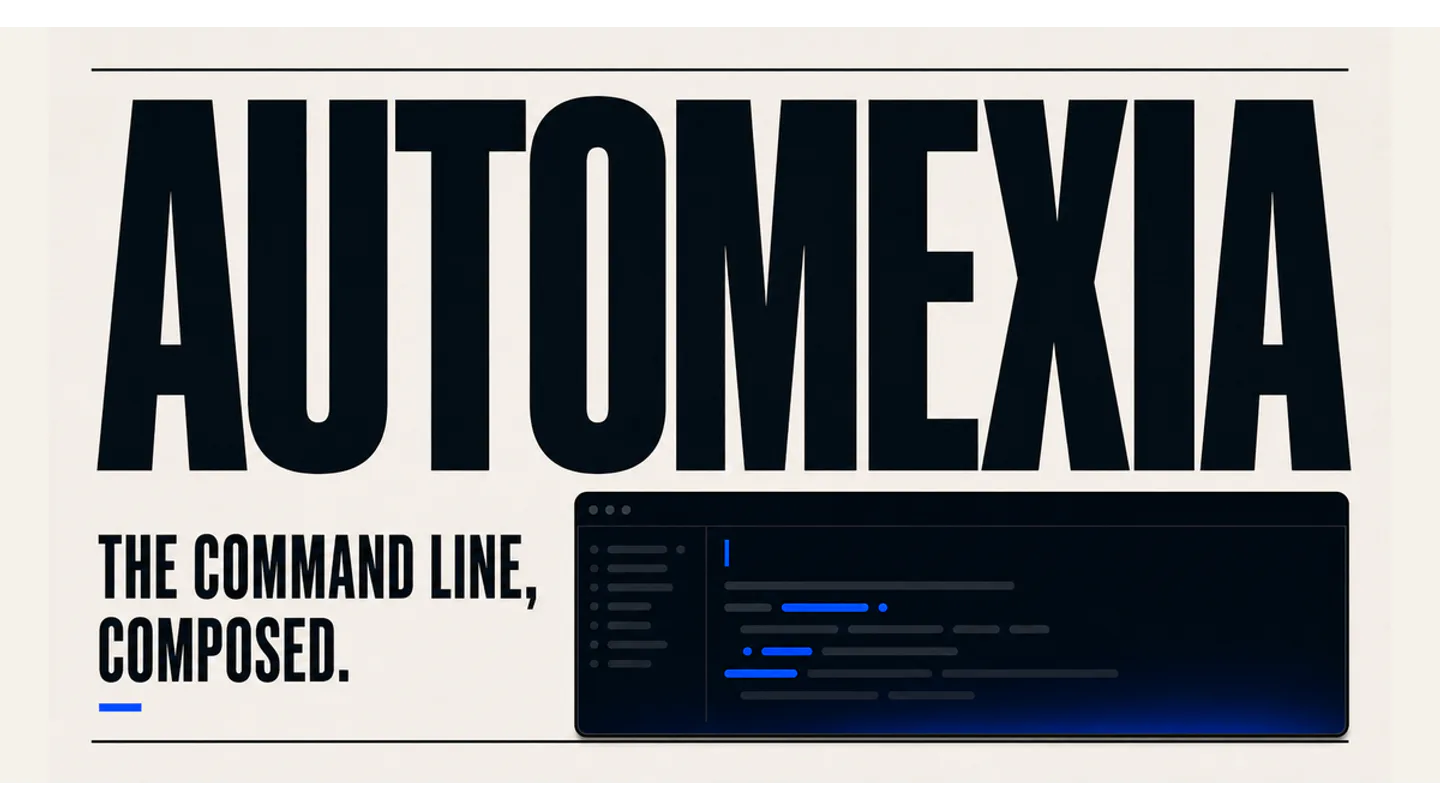
Automexia focuses on keeping related local terminal sessions organized. Windows, global tabs, split panes, and pane-local tabs give native shell sessions stable places without replacing the shell with a separate command model.
Highlights
- Search, scrollback, images, and configuration remain local.
- No account, hosted service, provider login, or model is required for the released Linux application.
- Terminal output is treated as untrusted display data, so links, previews, and search results cannot silently become shell input.
Things to consider
- Automexia v0.4.0 is Public Alpha.
- Published packages support Linux x64 and Arm64; stable Windows and macOS installers are not available.
- The community and third-party compatibility evidence are smaller than the mature alternatives in this comparison.
How to choose
A useful comparison should leave you with a shortlist, not a universal winner. Start by removing anything that fails a hard platform or security requirement. Then compare the workflow you actually want with the trade-off you would need to accept.
| If your priority is... | Look closely at... | Verify before switching... |
|---|---|---|
| Native desktop behavior on macOS or Linux | Ghostty | Whether the missing Windows support or Linux packaging model affects you |
| One programmable setup across many systems | WezTerm | Whether you want to maintain a Lua-based configuration long term |
| Terminal-native extensions and automation | kitty | Whether its learning curve and lack of native Windows support are acceptable |
| A terminal workspace with editor and agent features | Warp | Whether its broader connectivity and data boundary suit your environment |
| Organized local Linux sessions with the shell still in control | Automexia | Whether a Public Alpha release is appropriate for your current needs |
Before you switch
Do not replace your current terminal because a comparison table looks convincing. Give each finalist one real hour with the shell and layout you already use.
| Try | Good sign | Stop if |
|---|---|---|
| Your normal shell | Aliases, quoting, and paste work as expected | Basic habits become ambiguous |
| A deployment-style layout | The active session stays obvious | Context becomes harder to follow |
| A network or configuration failure | The failure is clear and recovery is quick | The recovery path is unclear |
If the test goes well, keep the old and new terminals side by side for a few days. The best long-term choice is the one that becomes predictable enough that you stop thinking about the terminal and get back to the work inside it.
Key takeaways
- Ghostty is a strong fit for developers who want a native-feeling macOS or Linux terminal.
- WezTerm is a strong fit for developers who want one programmable setup across several operating systems.
- kitty suits terminal-first users who value protocols, automation, and scriptable extensions.
- Warp makes the most sense when the editor, command blocks, and agent workflow are part of the reason to switch.
- Automexia focuses on organized local Linux sessions, but its Public Alpha status is an important practical limit.
- The right choice is the terminal whose trade-offs fit your real workflow, not the one with the longest feature list.
References & revisions
Primary documentation supports the technical guidance below.
- Automexia Terminal documentation Automexia
- Automexia feature catalog Automexia
- Automexia Terminal source repository GitHub
- Automexia platform support GitHub
- About Ghostty Ghostty
- Ghostty binaries and packages Ghostty
- WezTerm features WezTerm
- WezTerm downloads and supported platforms WezTerm
- kitty overview kitty
- Install kitty kitty
- Getting started with Warp Warp
- Warp installation and setup Warp
- Using Warp offline Warp
- Warp privacy and telemetry controls Warp
Revision history
Simplified the comparison layout, kept the existing branding direction, increased reading size and spacing, replaced the stacked product-card list with a compact comparison table, and gave each terminal its own spacious review section.